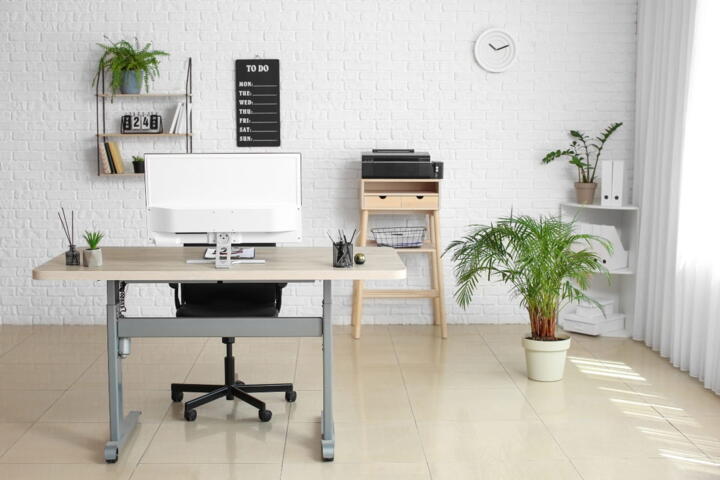
Desk height basics
Desk height controls where your elbows, wrists, and shoulders land during keyboard and mouse use. When the desk sits too high, shoulders elevate and the neck flexes forward; when it sits too low, you tend to reach and round your upper back. A practical example: if your forearms slope upward toward the keyboard, your wrists usually extend more, which increases strain on tendons and forearm muscles.
Evidence from ergonomic research links sustained awkward wrist angles and shoulder elevation with higher discomfort reports, though study designs vary. In one widely cited biomechanical framing, neutral wrist posture reduces tendon load compared with extended wrists, but exact percentages depend on task and measurement method. Workforce patterns also matter: more people work from home and alternate between laptops and external keyboards, and laptop-only setups often force compromises in screen height and desk height at the same time.
Learning trends follow the same constraint. Many online courses ask for long sessions at a desk, and course platforms now track time-on-task and frequent switching between tabs, which increases the chance you stay in one posture longer than you intended. Version 1.0 of many ergonomic checklists still assumes a full-size monitor, but many learners use a laptop stand that only changes screen height, not desk height.
Start with measurements, not feelings.
What goes wrong in setups
People often adjust only one variable: they raise the chair, lower the chair, or add a laptop riser, while leaving the keyboard and mouse where they are. That creates a hidden chain reaction through the body’s joints. For instance, raising the chair without moving the keyboard can push elbows above the desk plane, which encourages shoulder elevation and wrist extension.
Another common error comes from assuming “desk height” equals “work surface height.” In practice, the keyboard tray height, desk lip, and even the thickness of a desk mat change the effective height by 1–3 cm. Those small shifts matter because elbow angle and wrist angle respond quickly to reach distance. If your keyboard is 5 cm higher than your elbow height, you often end up with a more extended wrist and a tighter forearm grip on the mouse.
Workflows add friction too. If you alternate between typing and scrolling, your wrist angle changes repeatedly, and the muscles that stabilize the wrist and shoulder must keep resetting. That reset cost shows up as fatigue during longer lectures, coding sessions, or exam practice, especially when breaks are short. Skip the timer apps. They add one more thing to manage.
Some setups also create “data flow” problems in the body. Your eyes track the screen, your head follows, and your neck posture changes; then your hands follow the keyboard position; then your shoulders compensate. When the monitor is too low, you flex your neck, and that often drags your shoulders forward, which increases upper trapezius load.
How to set the right height
Measure elbow height first
Set your chair so your elbows sit around the same height as the keyboard surface. Use a simple reference: sit upright, relax your shoulders, and check whether your forearms feel level rather than sloping up or down. If you can’t measure, do a visual check from the side while someone watches, because wrist angle errors hide behind arm comfort.
Why this works: elbow height influences shoulder elevation and wrist extension during typing and mouse work. In practice, you want your wrists to stay closer to neutral and your shoulders to stay down. A realistic target many ergonomics guides use is elbow height roughly level with the keyboard, though individual anatomy and chair design shift the exact number.
What it looks like: when you rest your hands on the keyboard, your upper arms hang naturally, and your wrists do not “reach” upward. If you notice your shoulders creeping up after 10–15 minutes, your chair or desk height is probably off. Mild frustration helps here: if the chair feels right but the keyboard doesn’t, the desk is the culprit.
Record the chair setting.
Adjust keyboard and mouse
Move the keyboard and mouse so you don’t reach forward. A common rule is to keep the keyboard close enough that your elbows can stay near your sides without strain. If your desk is fixed, use a keyboard tray or a lower-profile keyboard, because adding a thick mat can raise the keyboard by 1–2 cm.
Why this works: reach distance changes shoulder protraction and wrist angle. When the mouse sits too far away, you often abduct the shoulder and extend the wrist to reach, which increases fatigue during repetitive clicking or trackpad scrolling. In practice, place the mouse at the same height as the keyboard and within comfortable arm length.
What it looks like: your forearm rests lightly, and your hand moves mostly from the elbow and shoulder rather than from a stretched wrist. If you feel wrist pain during mouse use, check whether the mouse is higher than the keyboard; a small height mismatch can force wrist extension. Tool-wise, a basic smartphone camera can help you compare wrist angle across two setups.
Then test for 20 minutes.
Set monitor height together
Use the monitor height to control neck posture, not to “fix” desk height. A laptop-only setup often forces the screen too low, which makes you flex your neck and then round your shoulders. Raise the screen until your gaze lands near the top third of the display, then re-check elbow and wrist posture because changing monitor height can change how you sit.
Why this works: neck flexion and shoulder protraction often co-occur when the screen is low. Evidence links sustained neck flexion with discomfort and altered muscle activation patterns, though exact thresholds vary by person and task. In practice, if you raise the screen and your shoulders tense, your chair height or keyboard position likely needs a second pass.
What it looks like: you can read without craning, and your head stays stacked over your torso. If you use Windows 11 with display scaling at 125% (a common setting), text size changes can tempt you to lean forward; adjust scaling before you chase posture.
Raise screen, then re-check.
Use chair features correctly
Set seat height, then adjust backrest and armrests. If your chair has adjustable armrests, set them so they support your forearms without pushing your shoulders up. Many chairs have armrests that are too high for desk work; that forces shoulder elevation even when the seat height is correct.
Why this works: armrests change where your body offloads muscle tension. In practice, you want a light contact, not a hard brace that makes you reach for the keyboard. If your chair lacks adjustable armrests, you may need to lower the keyboard or use a keyboard tray to keep elbows level.
What it looks like: you can type without shrugging, and you can move your arms without the armrests blocking your range. If you feel tingling in the forearm or hand, check whether armrests compress soft tissue or whether the keyboard is too high, which can increase nerve irritation risk.
Don’t trust one setting.
Account for laptop constraints
When you use a laptop, desk height and screen height are coupled. A laptop riser raises the screen but leaves the keyboard at the desk surface, which can create wrist extension if the keyboard ends up too high relative to your elbows. The practical fix is to pair the laptop riser with an external keyboard and mouse, or to use a keyboard stand that lowers the keyboard relative to the screen.
Why this works: separating screen and input devices lets you set neck posture and wrist posture independently. In practice, aim for elbow-level keyboard height and a screen height that supports neutral neck posture. If you can’t add external devices, consider a thinner laptop stand plus a separate document holder to reduce forward head posture during reading.
What it looks like: your hands land on the keyboard without reaching, and your eyes don’t force you to lean. If you notice you keep moving the laptop closer to you, your desk height or keyboard height is probably wrong, and your body is compensating by shortening reach.
External keyboard beats guessing.
Test with a short protocol
Run a 7–14 day test that tracks symptoms and task performance, not just comfort. Use a simple log: note pain or stiffness at the end of day, and record whether you had to adjust posture during lectures or typing-heavy work. Change one variable at a time, because changing chair height and monitor height together makes it hard to identify the cause.
Why this works: posture adaptation takes time, and short sessions can miss delayed discomfort. Evidence on musculoskeletal discomfort suggests that sustained exposure patterns matter, so you need repeated observations across similar tasks. In practice, you can compare two setups by alternating days, but avoid rapid back-and-forth if symptoms worsen.
What it looks like: after 20–30 minutes, you should feel stable rather than “tightening up.” If discomfort increases after a change, revert and try a smaller adjustment, such as lowering the keyboard by 1 cm or moving the mouse closer.
Stop if symptoms escalate.
Plan for limited adjustability
Some desks don’t adjust, and some chairs have limited range. In that case, use layered solutions: a keyboard tray, a monitor stand, and a footrest. A footrest can reduce compensatory leaning when the seat height can’t match your elbow height, especially for shorter users on standard desks.
Why this works: when feet don’t reach the floor, people often shift their pelvis and change trunk angle, which then changes shoulder and neck posture. In practice, a footrest can help you sit closer to the desk without hunching. If you have a high desk, a keyboard tray lowers the input surface without forcing you to raise the entire chair.
What it looks like: your hips stay stable, your shoulders stay down, and your wrists stop “floating” above the keyboard. If you feel pressure on the back of your knees, adjust seat height or add a slight seat depth change, because circulation issues can worsen discomfort.
Small changes add up.
Desk height in real learning
Scenario: remote student with laptop
A graduate student studies from a small desk and uses a laptop for lectures and note-taking. After 45 minutes, they report neck tightness and a “burning” forearm during typing. The student raises the laptop screen with a riser, but keeps the keyboard at desk height, which worsens wrist extension.
They switch to an external keyboard and mouse, then set chair height so elbows match the keyboard surface. They also raise the screen until the top third of the display sits near eye level. Over 10 days, they log fewer posture adjustments during long reading sessions, and forearm discomfort drops on typing-heavy days.
They still take breaks, because posture changes alone don’t remove all fatigue.
Scenario: office worker with fixed desk
An office worker has a fixed-height desk and an older chair with limited adjustment. They notice shoulder elevation during mouse use and frequent forward head posture when reading emails. The worker moves the mouse closer, lowers the keyboard by using a thin tray, and sets the monitor height so the gaze lands near the top third of the screen.
They also adjust armrests so forearms rest lightly rather than being lifted by the armrests. After two weeks, they report less end-of-day stiffness, though they still experience mild discomfort during long spreadsheet sessions. The worker adds a footrest on days when seat height can’t be tuned to elbow level.
They avoid large changes on consecutive days, because the feedback loop stays clearer.
Quick checklist and comparison
Use this decision support when you can’t change everything at once.
| Problem you notice | Likely cause | Try first adjustment | What to watch |
|---|---|---|---|
| Shoulders creep up | Keyboard too high or armrests too high | Lower keyboard 1–2 cm; reset armrests | Wrist extension should drop |
| Neck tightness | Monitor too low | Raise monitor; re-check elbow height | Head stays stacked over torso |
| Forearm fatigue | Mouse too far or wrist extended | Move mouse closer; match mouse height | Grip pressure should feel lighter |
| Hunching | Seat height mismatch or feet unsupported | Add footrest; adjust seat height | Trunk angle stays stable |
Checklist for a 10-minute reset:
- Set chair height so elbows align with keyboard surface.
- Place keyboard close so you don’t reach.
- Set mouse next to keyboard at the same height.
- Raise monitor until you read without neck flexion.
- Check armrests: light support only, no shoulder lift.
- Do 20 minutes of your usual task, then reassess.
Common mistakes to avoid
Changing only the chair
Why it happens: people start with the chair because it feels controllable and visible. Impact: the keyboard stays at the wrong height, so wrist extension or shoulder elevation persists. How to avoid it: after chair changes, re-check keyboard height relative to elbows and confirm the mouse sits within reach.
Ignoring keyboard height details
Why it happens: desk mats, keyboard cases, and thick wrist rests raise the input surface without obvious measurement. Impact: a 1–3 cm rise can shift wrist posture enough to increase forearm fatigue during long typing sessions. How to avoid it: measure from the desk surface to the keyboard deck, then compare it to elbow height.
Raising the screen but not the input
Why it happens: laptop risers and monitor stands fix neck posture, but they don’t change where hands land. Impact: you may sit taller and reach differently, which can worsen wrist angle or shoulder tension. How to avoid it: after raising the screen, do a quick side-view check of wrist and elbow alignment.
Using armrests as a crutch
Why it happens: armrests feel supportive, so people rest heavily on them. Impact: heavy contact can restrict shoulder movement and increase pressure on soft tissues, which can worsen discomfort for some users. How to avoid it: aim for light contact; if typing feels blocked, lower or remove armrest contact and adjust keyboard placement instead.
Skipping symptom tracking
Why it happens: comfort changes quickly, so people stop after one good session. Impact: delayed discomfort can appear after 2–3 hours or the next day, especially with repetitive mouse use. How to avoid it: log end-of-day stiffness for 7–14 days and change one variable per test.
FAQ
What desk height fits most people?
Most desks don’t match every body, so “fits most people” becomes a range rather than a single number. Many ergonomic setups aim for elbow height near keyboard height, because that reduces shoulder elevation and helps keep wrists closer to neutral. If your desk is fixed, you can often reach the target by adjusting chair height, using a keyboard tray, or adding a footrest. If you can’t get elbows near keyboard level, prioritize keyboard height and mouse reach over perfect desk height.
Should my wrists rest on a surface?
Light support can reduce muscle effort, but heavy wrist resting can increase pressure and encourage awkward angles during typing. If you use a wrist rest, keep it low enough that your wrists stay near neutral rather than bending upward. During mouse work, wrist rests often interfere with smooth motion, so many people do better with the mouse close to the body and the wrist floating slightly. If you feel tingling or numbness, stop and reassess keyboard and mouse height first.
How do I set height with a laptop?
Start by separating screen and input devices when possible. Raise the screen so you don’t flex your neck, then set chair height so elbows align with the keyboard surface. If you can’t use an external keyboard, use a stand that raises the laptop enough without forcing your wrists into extension. Many laptop-only setups fail because the screen rises while the keyboard stays too high relative to elbows, which increases forearm load during long typing sessions.
What signs mean my setup is worsening things?
Watch for increasing pain during the session, not just soreness after. Red flags include numbness, tingling, sharp pain, or symptoms that spread beyond the usual area. If discomfort escalates after a desk-height change, revert and try a smaller adjustment, such as lowering the keyboard by 1 cm or moving the mouse closer. Persistent or worsening symptoms deserve medical evaluation, especially if you have weakness, loss of coordination, or night pain.
How often should I adjust my workstation?
Adjust when you change tasks, change equipment, or change body factors like footwear. A common pattern: after switching from laptop-only to an external keyboard, you need a full re-check of elbow height and monitor height. If you start a new course with longer typing or spreadsheet work, do a quick 10-minute reset and log symptoms for a week. If your chair or monitor position changes due to cleaning or shared spaces, re-check alignment before long study blocks.
Author's Insight
Desk height problems rarely live in one joint. When you fix elbow height but ignore monitor height, neck posture often shifts and the shoulders follow. When you fix screen height but keep the keyboard too high, wrist extension shows up fast, especially during note-taking. Treat the workstation like a system: change one variable, observe 20–30 minutes of your real task, then adjust again.
Skip the timer apps. They add one more thing to manage.
Key takeaways
- Set chair height so elbows sit near keyboard height, then adjust keyboard and mouse so you don’t reach.
- Raise the monitor for neck posture, then re-check wrist and elbow alignment after the screen change.
- Use a 7–14 day log and change one variable at a time, because short sessions can miss delayed discomfort.
- If you can’t adjust the desk, use a keyboard tray, footrest, and correct armrest contact to reduce reach and awkward angles.
- Stop and reassess if symptoms worsen, especially if you notice numbness or tingling.