Topic Introduction
Workspace styling means arranging your physical environment so your brain spends less effort switching into “work mode.” The goal is not decoration for its own sake; it is reducing friction between intention and action.
A practical example: if your desk faces a bright window, glare can force you to squint and take more micro-breaks. If your chair sits too low, your shoulders creep upward and your neck tightens after 30–60 minutes. If your phone sits face-up within reach, the visual cue competes with your task list. Styling choices change those cues.
Start with the basics you can measure: light direction, chair height, monitor distance, and where your “start work” items live. Then add small sensory controls like sound masking or a calmer color palette. Even a minor change can shift your default behavior, especially when you repeat the same setup every workday.
Main Problems Or Pain Points
People often treat styling as a one-time makeover. That approach fails because your attention system adapts to repeated cues, not to occasional bursts of novelty.
One common mistake is buying decor that looks tidy but increases visual clutter. A desk with three decorative objects can still feel busy if your eyes keep scanning for “what’s there.” Another mistake is ignoring lighting mechanics. Overhead lighting can create harsh contrast, while mixed light temperatures (cool monitor light plus warm lamp light) can make text feel harder to read.
Noise is another dependency people underestimate. If you work with speech nearby, your brain spends effort filtering words even when you do not consciously listen. Sound masking helps, but it needs to be at a level that covers speech without becoming distracting. Many people set it too low, then wonder why it does not work.
Ergonomics also ties into styling. A “pretty” desk height that does not match your chair and monitor distance can turn the space into a discomfort generator. In my notes from setting up a home office on Windows 11 (version 23H2), I found that monitor placement mattered more than desk accessories for sustained focus.
Solutions And Advice
Layout That Cuts Friction
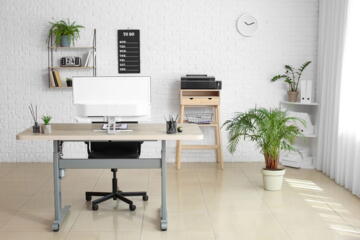
Place your primary monitor so you can read without leaning forward. A common target is about an arm’s length from your eyes to the screen, then adjust for your monitor size. Keep the keyboard and mouse centered with your torso, not offset toward the side where you reach. When your body posture stays stable, you spend less time “resetting” and more time working.
Use a “start work zone” on the desk: laptop or keyboard, notebook, and one pen. Everything else goes into a drawer or a secondary surface. This reduces the number of decisions you make at the beginning of a session. If you share space, use a simple divider or a tray so the zone stays consistent even when the room is used for other activities.
For cables, route them behind the desk or use a clip system so you do not tug on them during the day. Cable drag sounds minor, but it interrupts flow when you repeatedly reposition your chair.
Lighting And Color Choices
Choose lighting that supports reading and reduces glare. If you have a window, angle the desk so the screen is not directly facing the brightest part of the window. Use blinds or a diffuser when sunlight is strong. For artificial light, aim for even illumination across the desk rather than a single bright overhead spot.
Color affects perceived comfort through contrast and warmth. A calmer palette on the walls or background behind your monitor can reduce eye strain from high contrast. If you cannot change walls, use a neutral desk mat and keep high-saturation items off the immediate visual field.
Set your monitor brightness to match the room. Many people leave brightness at a fixed value and then work under different daylight conditions. A quick check: if you feel you need to squint, brightness or glare is usually the culprit, not “lack of motivation.”
Noise Control Without Drama
Pick a noise strategy based on your environment. If you hear intermittent speech, sound masking often works better than pure silence. If you hear steady noise like HVAC, a simple noise-canceling headset can reduce distraction. If you hear keyboard clacks from others, white noise plus a softer keyboard can help more than headphones alone.
Use a consistent volume level. Sound masking that is too quiet fails to cover speech; too loud becomes its own distraction. A practical approach is to adjust until speech becomes “background,” then stop tweaking for a week. That stability matters because your brain adapts to a fixed sound profile.
For meetings, consider separate audio paths: speakers for casual work, headphones for calls. This prevents the “audio switching” cost that can break focus.
Comfort That Supports Focus
Comfort is not only about posture; it is about reducing micro-discomfort that accumulates. Set chair height so your feet rest flat or on a stable footrest. Adjust monitor height so the top third of the screen sits near eye level. If you use a laptop, a stand plus an external keyboard often improves alignment more than adding a wrist rest.
Use a small, repeatable “session kit” within reach: water, a notepad, and a single charging cable. Keep it consistent so you do not stand up to search. Standing up is not always bad, but repeated searching turns into a habit loop that steals time.
For temperature, aim for a stable range rather than frequent swings. A fan can help if your room is warm, but direct airflow can dry eyes and worsen fatigue. If you notice eye dryness, reposition the fan or use a gentler setting.
Case Examples
Small Apartment Desk Reset
Scenario: A remote worker shares a living room and uses a folding desk. The desk faced a bright window, and the phone sat on the same surface as the keyboard. After moving the desk so the screen faced away from the window, adding a neutral desk lamp, and placing the phone in a drawer during work blocks, the worker reported fewer “start delays” and less eye fatigue by mid-afternoon. The change did not remove all distractions, but it reduced the number of times the worker checked the phone without meaning to.
What changed mechanically: glare decreased, and the phone cue moved out of the immediate visual field. The worker also kept a start-work tray so the setup looked the same each day, which reduced the mental overhead of beginning.
Shared Office With Speech Noise
Scenario: A freelancer works in a coworking space where conversations start and stop. The freelancer tried headphones at random volumes and switched between speakers and headphones during tasks. After choosing one approach for deep work—noise-canceling headphones at a fixed volume—and using speakers only for short admin tasks, the freelancer found that focus sessions became more predictable. The improvement came from reducing audio switching and stabilizing the sound environment.
What changed mechanically: the freelancer reduced “context switching” between audio modes and used a consistent masking strategy for speech-like noise.
Comparison Table Or Checklist
| Change | What It Targets | Typical Time to Notice | Risk / Tradeoff |
|---|---|---|---|
| Desk facing away from glare | Eye strain, micro-breaks | Same day | May require chair/monitor repositioning |
| Phone out of reach | Cue-driven interruptions | Within 1–3 sessions | Emergency access may need a separate plan |
| Consistent sound masking | Speech distraction | 2–7 days | Too loud becomes distracting |
| Monitor height adjustment | Neck and shoulder fatigue | Same week | May require stand or arm mount |
Decision checklist for the next 30 minutes: clear one surface, set the phone location, reposition the screen to reduce glare, and choose one sound approach for deep work. Then track one metric you can observe, like the number of times you stand up to search for items or the length of uninterrupted work blocks.
Common Mistakes
Buying a “focus” gadget without changing the environment often fails. A timer app does not stop glare, and a desk plant does not reduce speech noise. Styling works best when it changes cues that trigger interruptions.
Another mistake is over-personalizing the space with high-contrast visuals. A bright neon sign behind the monitor can look motivating for a day and then become a distraction during long reading tasks. If you want personal touches, place them outside the main line of sight.
People also underestimate how much lighting temperature affects comfort. Mixing warm lamps with a cool monitor can create a visual mismatch that makes text feel harder to read. If you notice headaches after long sessions, test one variable at a time: brightness first, then lamp placement, then background color.
Finally, many setups ignore accessibility and maintenance. A keyboard placed too far forward increases shoulder tension, and a chair that wobbles adds constant micro-corrections. If the space feels “almost right,” that usually means one measurement is off.
FAQ
What Desk Setup Improves Focus?
Center the keyboard with your torso, place the monitor so you do not lean forward, and keep a small start-work zone within arm’s reach. Remove the phone from the immediate visual field to reduce cue-driven interruptions.
How Should I Handle Window Glare?
Angle the desk so the screen does not face the brightest window area, then use blinds or a diffuser during strong daylight. If glare persists, reposition the monitor rather than raising brightness.
Do Sound Machines Work for Speech Noise?
They can help when speech becomes background rather than distinct words. Set the level once, then keep it stable for several sessions so your brain adapts to the same masking profile.
What Color Scheme Helps With Reading?
Use neutral or low-saturation backgrounds behind your monitor and avoid high-contrast decorations in your direct line of sight. Keep desk items visually simple so your eyes do not scan for “extra” objects.
How Long Until Styling Changes Show Results?
Some effects appear the same day, like reduced glare or less phone checking. Comfort and noise adaptation often take several days, especially when you stabilize audio and posture habits.
Author's Insight
Workspace styling affects attention through cues: visual cues, posture comfort, and sound patterns. The most reliable changes reduce friction at the moment you start work, such as glare control, phone placement, and a consistent start-work zone.
Evidence from ergonomics and human factors supports the idea that monitor distance, chair height, and lighting direction influence fatigue and perceived effort. Sound masking research also supports the role of stable background noise in reducing speech distraction, though results vary by environment.
When you test changes, change one variable at a time and track a simple outcome like uninterrupted work minutes or the number of interruption events. That method prevents you from attributing improvements to the wrong cause.
Key Takeaways
Style your workspace around measurable friction points: glare, posture strain, phone cues, and speech noise. Use a repeatable start-work zone so the environment triggers the same routine each day. Choose lighting and sound settings that stay stable for at least several sessions, then adjust based on observed comfort and focus time.